If you're on Shopify Advanced or Plus and you want YouTube creators to be able to tag your products in their videos, this is the setup. About 20 minutes of work, split across two interfaces: the Google & YouTube app inside Shopify, and the YouTube affiliate section inside Google Merchant Center.
This guide covers the brand-side affiliate program only. It's one of three separate YouTube Shopping programs, each with different eligibility, and most online guides conflate them. What's ahead: prerequisites, the Shopify activation flow, the Merchant Center confirmation, the settings screens you'll manage the program from, and the setup mistakes that cost brands the most time.
Start here: Why YouTube Shopping is a category-defining channel · The complete Getting Started guide
Before you start: the prerequisites
The YouTube Shopping affiliate program has a short but strict list of requirements. If any of these aren't true for your store, the activation flow will fail silently or lock you out later.
One thing that is explicitly not required: a YouTube channel. You don't need subscribers, watch hours, or videos of your own. The subscriber thresholds you've seen online apply to the YouTube Partner Program, which governs the YouTube Store (a separate product). It does not govern the affiliate program. Brands conflate these constantly and close the tab assuming they don't qualify. They do.
One thing that is explicitly not required: a YouTube channel.
Phase 1: Install the Google & YouTube app on Shopify
From your Shopify admin, go to Sales channels in the left sidebar and add the Google & YouTube app if it isn't already installed. Once installed, it lives permanently in the sidebar.
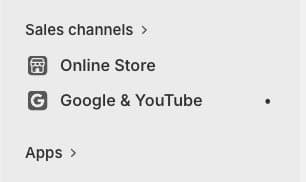
If you've been running Google Shopping ads, this app is already installed. If not, install it from the Shopify App Store and walk through the initial connection: link your Google account, connect or create a Google Merchant Center account, and let product sync complete. Full catalog sync takes anywhere from a few hours to a couple of days.
Don't move to Phase 2 until your products show as approved in Merchant Center. Activating the affiliate program on a catalog still under review creates problems you'll have to untangle later.
Phase 2: Activate the YouTube Shopping affiliate program in Shopify
Inside the Google & YouTube app, scroll to the Impactful opportunities section. You'll see a row of tabs with YouTube affiliate program as one option. If it says Inactive, click Get started.
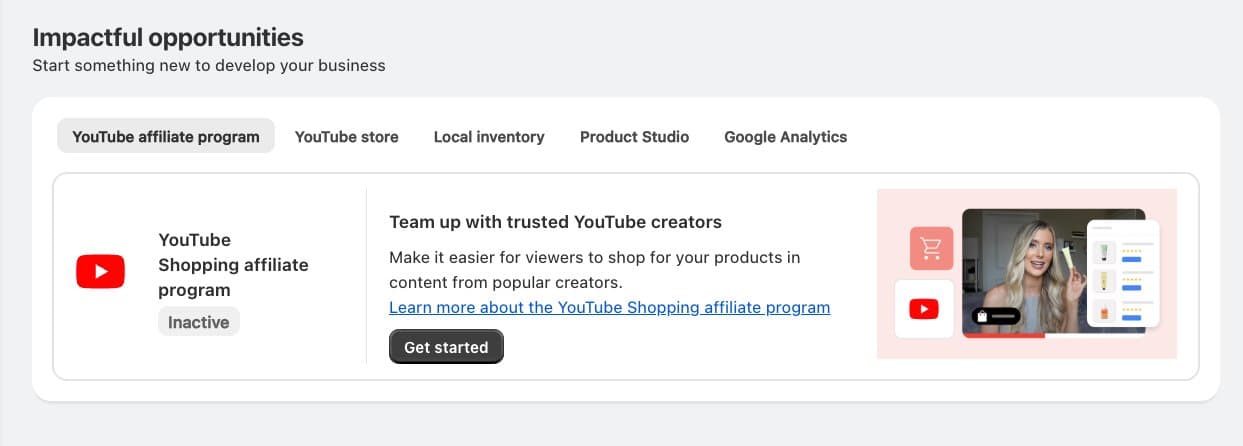
This opens a four-step activation flow. The progress bar at the top tracks where you are.
Step 1 of 4: Set your default commission rate
The first screen asks you to set a default commission rate. This is the rate all eligible creators see by default when your products appear in the YouTube Shopping creator tools.
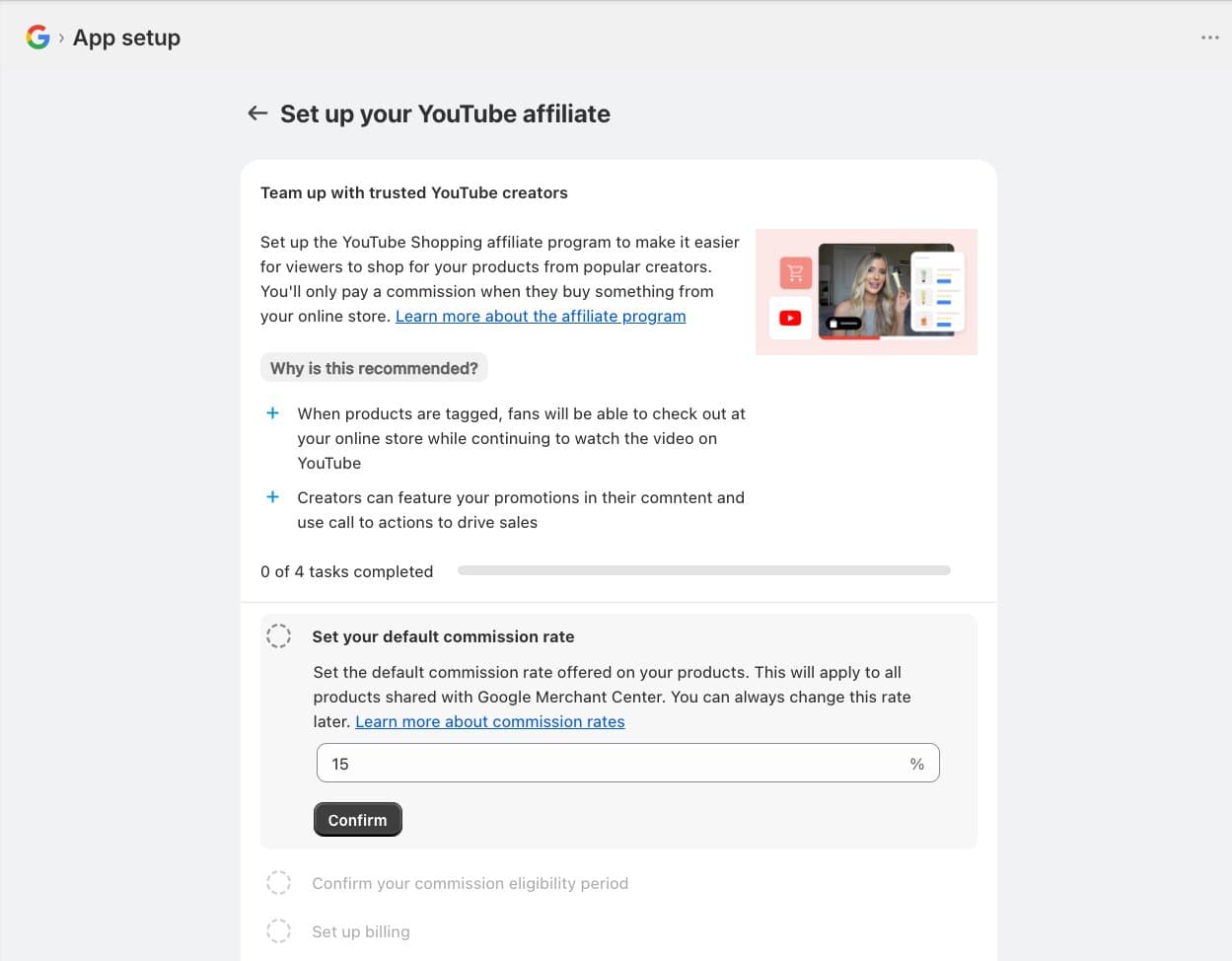
Type in your rate and click Confirm. You can change this later. Commission rate strategy (what to pick for your category, when to tier up) is its own topic and we cover it in the CRO guide under Tactic 7. For now, pick a reasonable starting rate and move on.
Step 2 of 4: Confirm your commission eligibility period
Next, the flow asks you to confirm your pending period. This is how long you'll hold a commission before paying it out to the creator. It exists to cover your return window: if a customer buys and then returns within the pending period, no commission is owed.
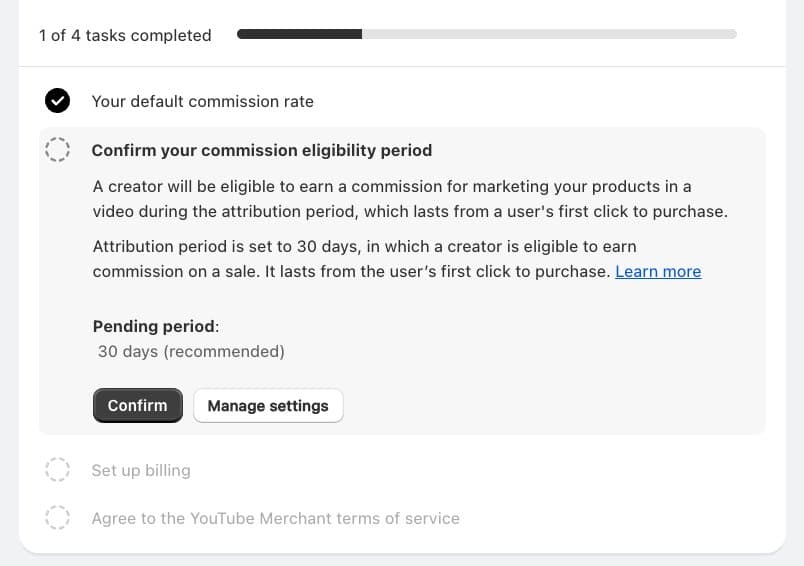
Clicking Manage settings opens a modal where you can set the actual day count.
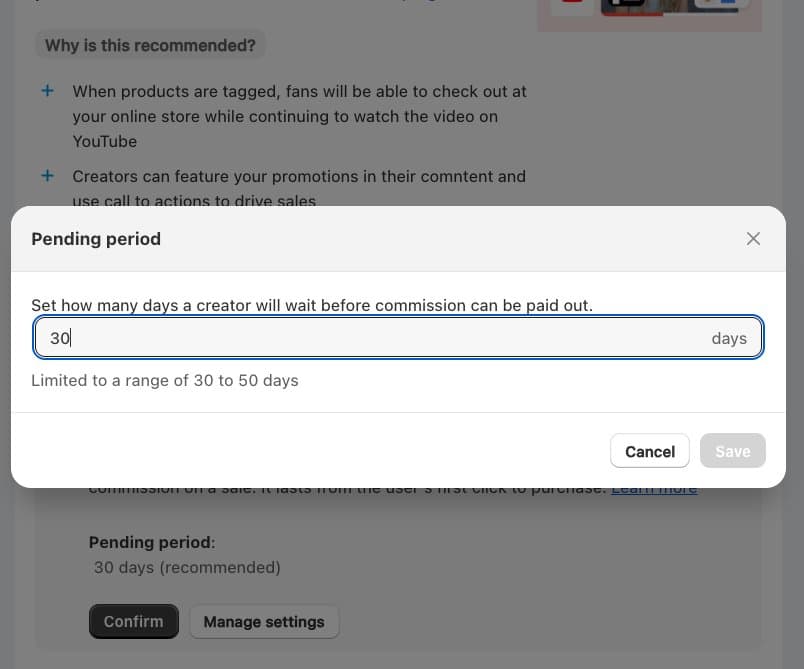
The allowable range is 30 to 50 days. The default is 30. If your return window is longer than 30 days, extend the pending period to match. A 45-day return policy with a 30-day pending period means you'll occasionally pay commissions on sales that get refunded.
The attribution period (the window in which a creator's click can still be credited to a sale) is separate from the pending period. Attribution is set at 30 days and isn't editable in this flow.
Step 3 of 4: Set up billing
Third task: add a payment method. When creators drive sales, you'll be charged for the commissions they earn. Automatic payment runs on the first of each month.
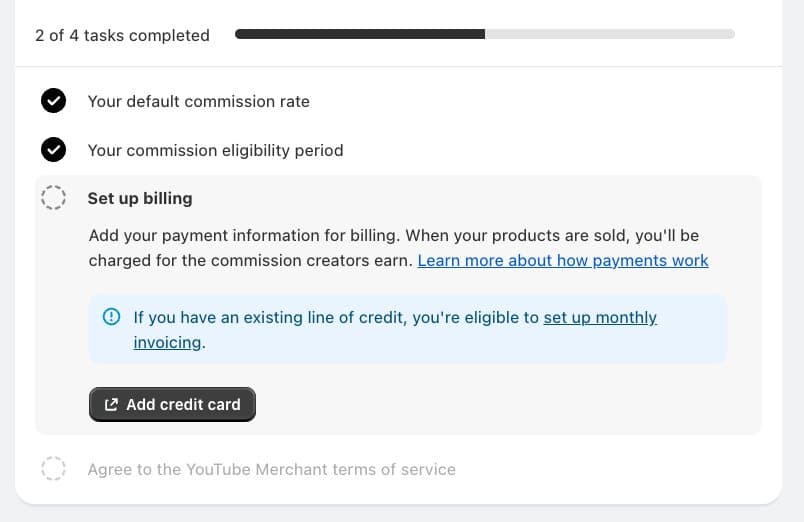
Click Add credit card and complete the setup in the popup. If you have an existing line of credit with Google, you're eligible for monthly invoicing instead.
Step 4 of 4: Agree to the YouTube Merchant terms of service
The final step is accepting the YouTube Merchant terms. Check the box to activate. Once accepted, your program flips to Active.
Verify the connection
Back in the Google & YouTube app overview, scroll to Connected services. Both Google Merchant Center and YouTube Shopping affiliate program should show Active, alongside your product approval counts.
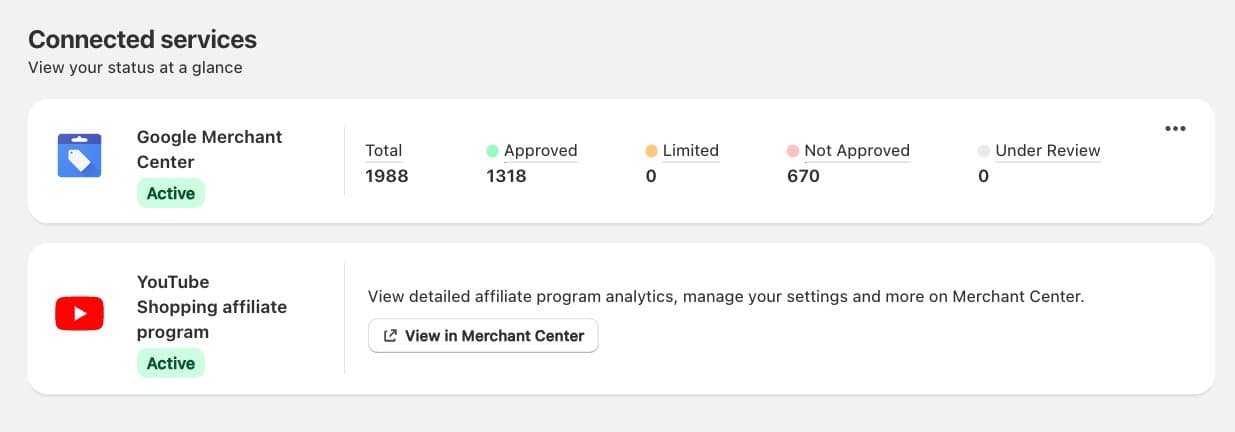
If either shows anything other than Active, resolve that before moving on. A half-connected program causes weird analytics gaps later.
Phase 3: Confirm the program in Google Merchant Center
Everything from here forward happens in Google Merchant Center Next, not Shopify. Shopify handles activation; Merchant Center handles the day-to-day management.
In Merchant Center Next, open the sidebar and go to Marketing > YouTube affiliate.
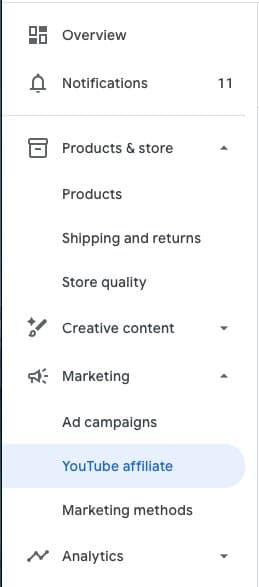
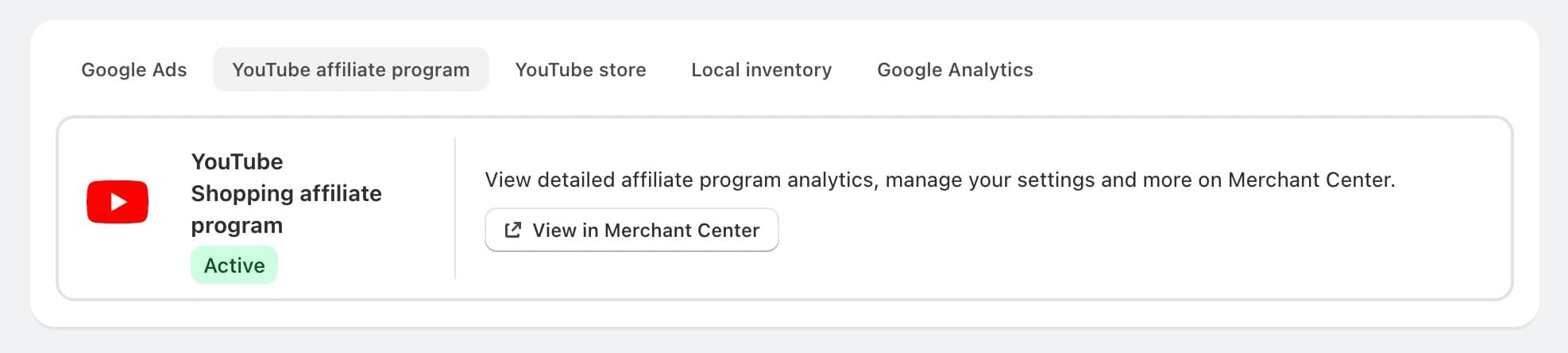
The Marketing tab will show YouTube Shopping affiliate program with Active status. Click View in Merchant Center to open the full program interface.
Phase 4: Your four management tabs in Merchant Center
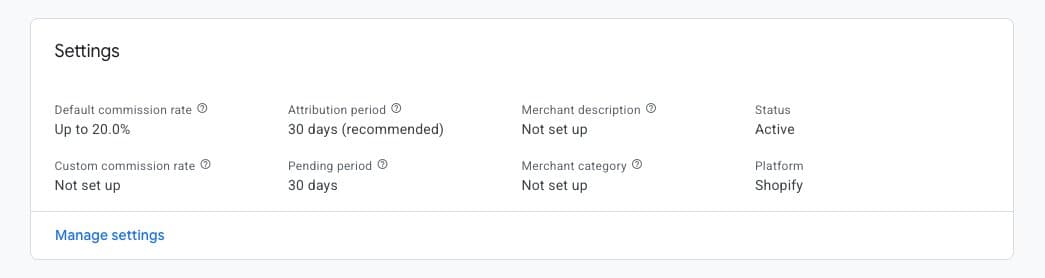
The YouTube Shopping affiliate program interface has four tabs: Overview, Analytics, Creators, Commissions. These are the screens you'll come back to for the life of the program.
Overview
The Overview tab is the home screen. It shows an analytics summary for the last 28 days (gross sales, net sales, commissions, views, impressions) and a shortcut to invoices. Use it for a daily or weekly glance. For anything deeper, go to Analytics.
Settings (accessed from Overview)
Scroll down on the Overview tab and you'll find a Settings block summarizing your program configuration.
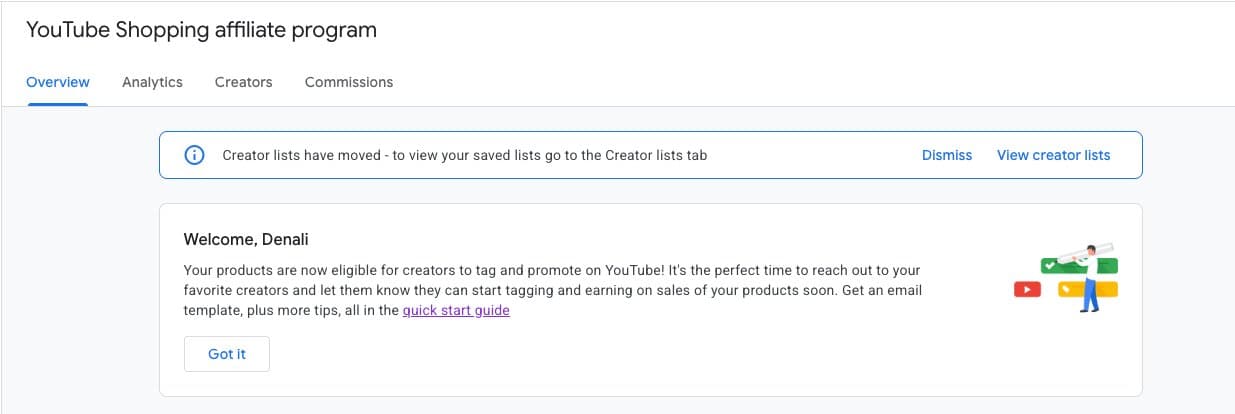
Clicking Manage settings opens the full settings page where you can adjust commission rates, pending period, merchant description, merchant category, billing, and program status.
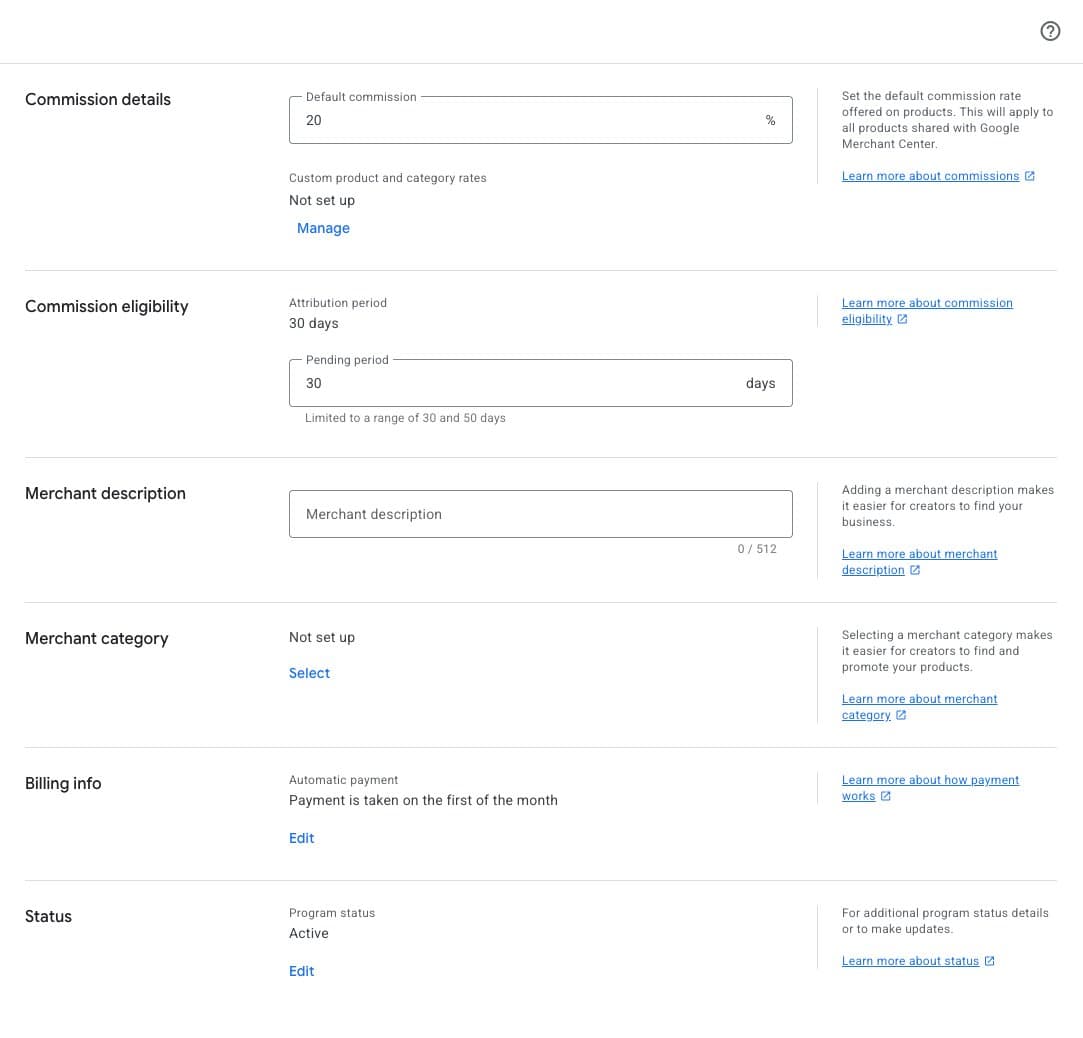
Two fields here deserve attention the day you activate, and neither is set by default:
- Merchant description. A 512-character field where you tell creators who you are. When a creator searches the YouTube Shopping creator database, this is part of what they see. Leaving it blank leaves discoverability on the table.
- Merchant category. A dropdown that tags your brand into a category (beauty, outdoor, fitness, etc). Creators filter by category when browsing brands to partner with. Uncategorized brands are harder to find.
Fill these out before you start outreach. It's a five-minute task.
Creators
The Creators tab is the discovery interface. The default subtab is Discover creators, which lets you search YouTube creators by keyword, filter by subscribers, engagement rate, and average views, and save creators to lists.
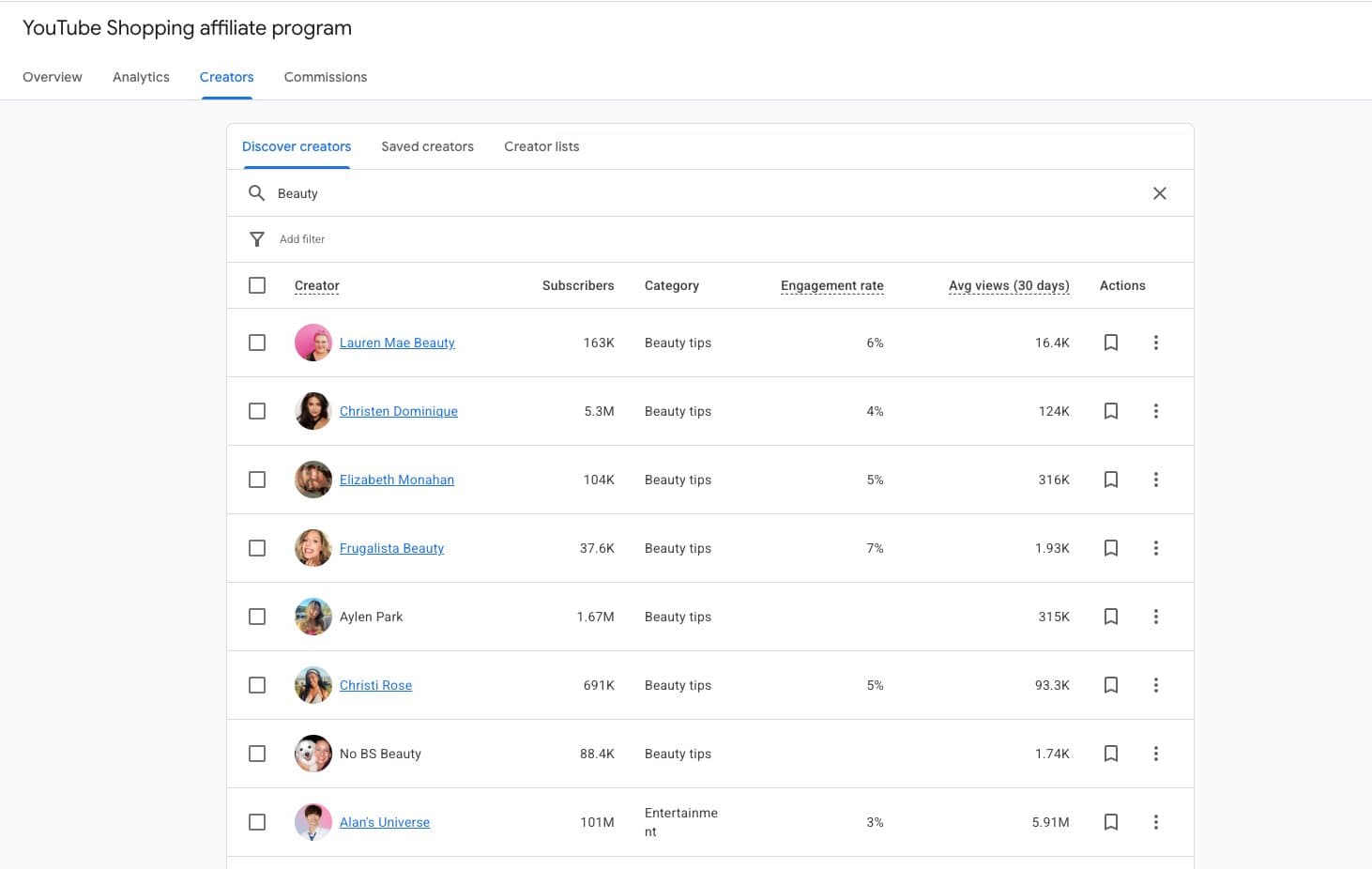
This is the native creator-search tool. Useful for a first pass, though the filtering is shallow compared to dedicated creator intelligence platforms. You'll want both: native for quick lookups, something more powerful for serious vetting.
The Saved creators and Creator lists subtabs are where saved creators and segmented lists live. Once you tier your program, you can assign higher commission rates to specific lists from the Commissions tab.
Commissions
The Commissions tab is where commission rates get managed after the initial activation. Your default rate is shown as the first row in the Commission rates table.
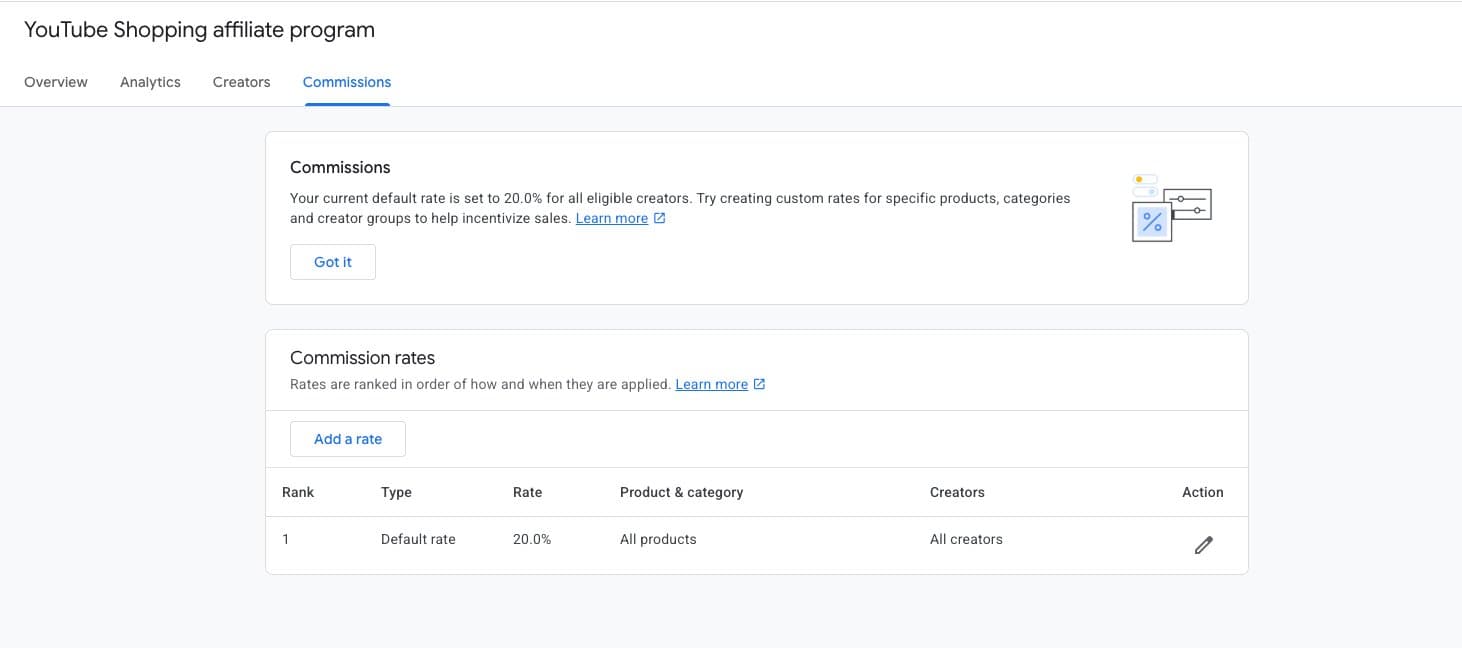
Clicking Add a rate opens a form for custom rates: higher commission for specific products, categories, creator lists, or combinations. Rates can only go up from your default, not down. Keep that in mind when you set the default: you're setting the floor, not the ceiling.
You're setting the floor, not the ceiling.
Common setup mistakes
These are the ones we see most often on audits of brands that tried to set this up themselves.
- Activating before product approvals are complete. Products sit in "Under Review" for 2 to 5 business days on first sync. Activating before approvals finish means creators see a partial catalog. Wait for the approved count to stabilize first.
- Leaving merchant description and category blank. The program still works, but creator discovery breaks down. Fill these in on day one.
- Setting a pending period shorter than your return window. If you accept returns for 45 days but hold commissions for 30, you'll pay out on sales that later refund. Match the two.
- Setting the default commission rate too high. You can add higher custom rates later. You can't lower the default for everyone once creators have signed on at that rate. Start conservatively.
- Trying to change the connected Merchant Center account after activation. You can't. Once the program is live, the GMC connection is locked. To move accounts, deactivate the program first.
- Assuming the affiliate program will pull from a third-party feed provider. With a small number of exceptions, it won't. Products have to sync from Shopify to GMC via the native integration.
What happens next.
Once the program is active and your settings are dialed in, the mechanical setup is done. The work that actually produces revenue starts from here: creator outreach, commission strategy, content briefs, attribution dashboards. That's the part most brands underestimate.
The full YouTube Shopping stack we manage lays out what ongoing program management involves. For the strategic next steps, the sibling guides are worth a read:
Getting started with YouTube Shopping · Creator content strategy · YouTube SEO for DTC brands · CRO tactics for YouTube Shopping
The brands that activate in 2026 will be 12 months ahead of the brands that activate in 2027. The setup is 20 minutes. The compounding starts the day creators begin tagging.
The setup is 20 minutes. The compounding starts the day creators begin tagging.
Book a 30-minute YouTube Shopping review with Feels Like Friday. We'll walk through your GMC connection, your program settings, and the creator discovery side in under half an hour.
Feels Like Friday is the YouTube Shopping agency for DTC brands. We handle the full program from Merchant Center setup through creator vetting, commission strategy, and attribution. Learn more about what we do.